This entire document is (C)opyright 1998 by Stewart Instruments, Inc. All
Rights Reserved, including, but not limited to, the restriction from
reproduction in whole or in part for free or fee in any form.
SAFE-CGtm is a trademark of Stewart Instruments, Inc.
SAFE-CG is (C)opyright, 1998 by Stewart Instruments, Inc.
Published by STEWART INSTRUMENTS, INC
PO Box 11929
Prescott AZ 86304
928-778-6988
The information provided herein is for educational use only. While every reasonable effort has been made to ensure the accuracy of this offering, Stewart Instruments, Inc. will not be held liable for any consequential or inconsequential damage due to the use or misuse of this product, or the information herein. Use of this product or the information herein constitutes an understanding of, and an agreement to the above.
LAST UPDATED: 03-09-98
What's In This Package?
Installation
Weight and Balance
AS-EASY-AS
Program
DFLY.WKS Worksheet
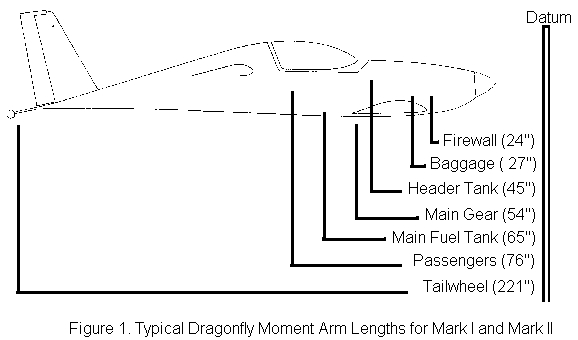
Figure 1 ... Moment Arm Lengths
Figure 2 ... DFLY.WKS Worksheet
Figure 3 ... Dragonfly on Scales
Figure 4 ... Tailwheel on Scale
SPREADSHEET
This Weight and Balance package includes this manual, a Shareware
Spreadsheet program called AS-EASY-AS, and a special Worksheet to be viewed by
the spreadsheet program called DFLY.WKS. You may download the software package by
clicking here, now. DOWNLOAD W&B.EXE The file is a
self-extracting .EXE file. Copy it to your c:/ASEASYAS folder or subdirectory.
From the /ASEASYAS folder, type W&B<enter> to unpack the files.
AS-EASY-AS is a Spreadsheet program. It allows a worksheet to be created using comments, constants and variable calculations. It is typically used in those situations where analysis is required of a heap of interdependent data, and allows the user to change one variable and see what happens to the rest of the worksheet when that data is changed. The entire worksheet is recomputed automatically whenever one piece of data is changed. You may be more familiar with the term "What IF" to describe the function of a spreadsheet program. Lotus 1-2-3 is another example of a Spreadsheet program. By the way, the Worksheets created by the enclosed AS-EASY-AS Spreadsheet program are completely compatible with the Lotus 1-2-3 Spreadsheet program.
There is a set of commands to learn in order to effectively use AS-EASY-AS. They are not particularly difficult, but, in their true lineage of Lotus 1-2-3, they are NOT intuitive. Fortunately, almost everything that has to be done to the worksheet can be handled by the built-in drop-down menus. So the learning curve can be quite shallow for most users - maybe no more than 15 minutes for most to know enough to modify the Worksheet for their particular aircraft.
One of the following chapters tackles the command set, and explains how to easily get to the drop-down menus, so you can get started right away.
WORKSHEET
The DFLY.WKS Worksheet has been constructed to act as an example in finding the Weight and Balance (W&B) and actual Center of Gravity (CG) of a typical Dragonfly experimental aircraft. By changing some of the constants on the worksheet, it is possible to modify the worksheet to accurately reflect your particular aircraft.
The worksheet is no more than a matrix of cells. Each cell can contain either a comment (i.e. some text like 'Weight & Balance'), or a constant (i.e.. some fixed value like 50 pounds or 25 inches) or a formula (i.e.. total moment= weight x moment arm length). You decide what each cell should hold. When you print the worksheet, you will see the comments, you will see the constants and you will see the RESULTS of the formula calculations. Too cool, huh? Ok, let's install this stuff.
SHAREWARE
The distribution package contains the AS-EASY-AS Shareware Spreadsheet program, some support files for the program and the DFLY.WKS Worksheet file.
Shareware is a concept of software distribution where you try out a program for awhile, then, if you like the program, you pay a nominal amount to purchase the rights to use the program forever. This is called registering a user (you). As a result of paying the fee ($30 for AS-EASY-AS) you may also get a printed manual, or the latest version of the software, or other neat stuff.
Stewart Instruments, Inc. makes no money on AS-EASY-AS if you register and pay the user fee. We are simply using AS-EASY-AS as a vehicle to demonstrate the benefits of using a Spreadsheet program to effectively calculate Weight & Balance and CG for aircraft. We are simply distributing the Shareware version of the program and in addition offering our DFLY.WKS Worksheet as a valuable adjunct to the Shareware disk.
AS-EASY-AS is a DOS program, which means that it will run on ANY IBM PC or compatible desktop or laptop computer, either MS- or PC-DOS, Windows 3.x or Windows95.
The installation process consists of creating a subdirectory (or folder) into which the files from the distribution package are to be copied.
MS or PC DOS Installation
To install AS-EASY-AS Spreadsheet program, support files and DFLY.WKS Worksheet onto a DOS computer:
1. Move to the root directory by typing CD\<enter>
2. Create
program subdirectory by typing MD\ASEASYAS<enter>
3. Move to the
new subdirectory by typing CD\ASEASYAS<enter>
4. Insert the
distribution disk into your A: or B: Drive
5. Copy files into new
directory by typing COPY A:*.* C:\ASEASYAS<enter>
6. Remove diskette and store away in a safe place.
Windows 3.x Installation
To install AS-EASY-AS Spreadsheet program, support files and DFLY.WKS Worksheet onto a Windows 3.x computer:
1. Insert distribution diskette into your A: or B: Drive
2. From the
Program Manager, open the File Manager
3. Move to the root folder by
double clicking on C:\
4: Create a new folder ASEASYAS by selecting
FILE/CREATE DIRECTORY
5. Move to the new folder by double clicking on the
new folder name
6. Click on the C: Drive Icon to make the new folder the
default folder
7. Click on the B: Drive Icon
8. Select all the
files on the B: drive
9. Click and drag all the files to the C: Drive
Icon
10. Answer YES to wanting to copy files to the ASEASYAS folder
11. Remove the diskette from the floppy drive and store away in a safe
place.
Windows95 Installation
To install AS-EASY-AS Spreadsheet program, support files and DFLY.WKS Worksheet onto a Windows95 computer:
1. Insert distribution diskette into your A: or B: Drive
2. From the
Program Manager, open the File Manager
3. Move to the root folder by
double clicking on C:\
4: Create a new folder ASEASYAS by selecting
FILE/CREATE DIRECTORY
5. Move to the new folder by double clicking on the
new folder name
6. Click on the C: Drive Icon to make the new folder the
default folder
7. Click on the B: Drive Icon
8. Select all the
files on the B: drive
9. Click and drag all the files to the C: Drive
Icon
10. Answer YES to wanting to copy files to the ASEASYAS folder
11. Remove the diskette from the floppy drive and store away in a safe
place.
What's All This Fuss About W&B?
Weight & Balance isn't rocket science, but it IS vitally (as in: it can kill you) important. W&B has to do with weighing your empty plane with vital fluids (oil and, if appropriate, coolant) aboard, compensating for the weight of other fluids (fuel) and coming up with what is affectionately known as Empty Weight. From this Empty Weight and additional information regarding the loading of the airplane with fuel, passengers, and baggage, a clear picture can be formed about how close your airplane is to its Gross Weight (a manufacturer's safety number) and whether you're within the manufacturer's recommended Center of Gravity (CG).
Going through the W&B calculations for Gross Weight and CG isn't something that you stop doing once you've completed the Private Pilot Written Test. It's this CG, to a greater degree, and the Gross Weight limit, to a lesser degree, that has the potential to kill. Every manufacturer or plans supplier identifies these certain data limits for you, either in the construction guide or in the Pilot's Operating Handbook.
Manufacturers are quite clear about how much stress their designs can handle. The Gross Weight Limit is the weight below which you can safely assume that the plane's parts will stay connected together and not break up, under normal flying conditions. The Center of Gravity is an especially important limit. If the actual (calculated) CG is within the recommended range, you can be sure that the aircraft will respond correctly to your control inputs during flight.
In a canard aircraft, like the Dragonfly, a too far forward CG can prevent the canard from becoming airborne on takeoff or cause an excessive increase in its stall speed (or premature stall) during landing. CG that is too far aft may prevent the rear wing from becoming airborne on takeoff, or cause the rear wing to stall before the canard during landing, a decidedly unkind thing for it to do.
There are books and more books on the subject of CG and how it relates to W&B calculations. The reason is that W&B is misunderstood and the calculations foreign to a large number of the flying community. But it is crucial for safe flying.
PROCEDURE
The first step is to weigh the plane. There are different ways to do this - suspend the plane in a sling, employing separate scales for each wheel, etc. While it's much more accurate and satisfying to have your plane weighed on a precision aircraft scale, the price and inconvenience is no excuse for NOT having a GOOD idea of what your W&B is. A set of three $10 bathroom scales will get you in the ballpark and on your way to a safer flight.
Your plane should be, ideally, empty of everything that changes weight during flight or from flight to flight. This means no fuel, no passengers, no baggage and no Cheetos. Things that should be weighed with the plane are engine oil, coolant, and all instruments. Now, it's usually not possible to weigh a plane completely devoid of fuel, so most W&B calculators provide a way to subtract the effects of fuel on board.
With whichever weighing method you have success, some key data has to be collected. Typically, three scales are used, one under each wheel. The exact weight indicated on the scale is recorded for each wheel. At the same time, record exactly how much USABLE fuel is onboard. If you have to, drain and measure the fuel load to be accurate. It's crazy to pay for digital scale rental and operator to get accurate weight of the plane down to a fraction of an ounce, then mess all the numbers up by missing the guestimate of fuel on board by a gallon (6 lbs)!
A NOTE ABOUT BATHROOM SCALES:
They are notoriously inaccurate. They tend to have an upper limit of 300 lbs. Once overloaded, they never recover. Having said that, if your aircraft won't overload the scales, and you can duplicate all of the measurements on two different attempts separated by at least one day, then you might (might) have a set of numbers that will prove close (even if not exact). As I said before, if you can't afford the high cost of digital aircraft scales, or there are none anywhere near where your plane is, that is NO excuse for not trying to get some kind of indication of what your empty weight (and CG & Gross Weight) is, even if it's with the bathroom scales. Use new ones, don't overload them, and try for repeatable results on two different days.
When you total up the weight indicated on the three scales, you have the empty weight of the aircraft with fuel aboard. Now subtract the weight of the USABLE fuel on board (at 6lbs/US gallon). What's left is the Empty Weight. A nice beginning to arriving at the Gross Weight and CG of your plane in its flying configuration. Congratulations.
As an aside, you might be interested in knowing how the CG looks with an empty airplane. That will require you to remember how moment arms and their related weights are combined and divided by the total weight to arrive at the CG.
MOMENT ARMS
The weights that you recorded for each wheel has an associated distance from a specific point near the front of your airplane called the Datum line. If you refer to Figure 1, Dragonfly Moment Arm Lengths, you'll see that Datum line way out in front of the airplane. In fact the designer selected this point (its position is really arbitrary, but that's another story) exactly 24" in front of the engine firewall.
|
|
The fact is, ANY Datum point is ok for calculating (as long as it doesn't change during the calculation process). But to compare your results with the manufacturer's or plans supplier's numbers, you have to use the same Datum line (kind of an apples to oranges problem, otherwise). So, as you can see, every wheel weight has an associated distance from the Datum line. These lengths are called Moment Arms.
TOTAL MOMENT
If you multiply (stay with me, this isn't too spacey) the wheel weight by its moment arm length (its distance from the Datum line), the result is called (surprise!) the Moment. If you total the three Moments for the three wheel weights, you have what's called Total Moment. Now the last step is to divide the Total Moment by the Empty Weight and voila, you have the CG position for the empty aircraft.
Now this ignores any fuel on board. So if you really want to be exact (of course you do), you have to subtract out the total moment due to the weight of the fuel. So now you see, you also have to record where that fuel is located as well as its weight. But you get its moment the same way as you did for the wheel weights: multiply the weight (6 lbs/US gallon) of the gallons of USABLE fuel on board during the weigh-in, by the distance of the center of the fuel load to the Datum line. Since the Dragonfly's Datum line is out in space ahead of the airplane, we measure the distance of the fuel location from the firewall, instead, and add 24". Way Cool.
EMPTY CG
You now have the total moment due to fuel. By taking the Total Moment (without fuel correction) that you calculated above and subtract the total moment due to fuel, the result is now the true total Moment. Divide this Total Moment by the Empty Weight, and voila you have the exact position of CG for your empty plane. Further congratulations are in order! How does it compare to the published limits in your aircraft's POH or construction guide?
CG LIMITS
Now you have been re-armed with the knowledge to compute W&B, Gross Weight and CG for the different flying configurations for your particular aircraft (really!). A truism here is in order: if you takeoff within manufacturer's CG and Gross Weight limits and land within those same limits, you probably stayed within the limits during the flight.
In other words, all else being equal, if you takeoff with full fuel and are within manufacturer's CG and Gross Weight limits, and land almost dry and are still within the limits, then probably nothing will surprise you in flight. (This is true for a Dragonfly, but your extreme may be a different set of calculations.) So a couple of configurations that you'll need right off the bat is takeoff with full fuel, and landing with minimum fuel on board.
FULL FUEL TAKEOFF CALCULATIONS
You already have the exact (corrected for extra fuel during weigh-in) Empty Weight Total Moment, Empty Weight and resulting Empty Weight CG. Now you have to calculate the weight of a full fuel load (at 6lbs/US gallon) and multiply by the distance of the fuel load is from the Datum line to get Moment due to Fuel. You have to do the same moment calculation for anything you're adding to the aircraft that has weight (passenger/pilot/baggage/etc) by multiplying its weight by its distance from the Datum line. Combine all these additional moments and add them to the Empty Weight Total Moment to get Total Takeoff Moment.
To find the Gross Weight, total all the weight of these items that you added to the empty plane and add it to the Empty Weight. Have you exceeded the published Gross Weight Limit of the aircraft? No? Good. Proceed.
We're in the home stretch, now, Dude. Divide this Total Takeoff Moment by the Gross Weight and the result will be the position of the CG of the aircraft at takeoff. Are you within the published limits? Yes? Very Good.
LOW FUEL LANDING CALCULATIONS
You have to do the same thing for the flying configuration of minimum fuel (during landing). Start with the Empty Weight, Empty Weight Moment and Empty Weight CG. To the Empty Weight Moment add the moments you calculated for pilot/passenger/baggage (none of these changed weight during the flight). You have to calculate a new moment total due to fuel load since you're running almost on fumes at this point.
Total up the added Moments and add to the Empty Weight Moment to get the new Total Moment. Total up the added Weights and add to the Empty Weight to get the new Gross Weight. Divide the Total Moment by the Gross Weight to get the position of your aircraft's CG during landing with low fuel. Are you still within published limits? Yes? Absolutely far out.
THE BAD NEWS AND THE GOOD NEWS
Obviously there are several scenarios that have to be calculated to be sure you're flying a safely loaded airplane. By now all those Moments, Weights, CGs are swimming dizzily in your head. What you don't need is more calculations. The bad news is that you have to compute each scenario, you don't have a choice and still fly safe.
The good news is that all these calculations can be done for you if you will learn a few simple commands, run the AS-EASY-AS Spreadsheet program (and, of course, use the DFLY.WKS worksheet that I so thoughtfully designed for you and included in this package). Here's what it looks like
Weight & Balance Worksheet
Aircraft ID:
DRAGONFLY
Date: 3-8-1998
These are the Empirical Constants I've measured from my plane:
| Station Firewall Main Gear Tail Gear Main Tank Header Tank Pilot Co-Pilot Baggage |
Location 24.00 inches 54.00 inches 221.00 inches 65.00 inches 45.00 inches 76.00 inches 76.00 inches 27.00 inches |
Fuel: Max Gross Wt CG Limits (Mfg) Pilot Weight Co-Pilot Weight Baggage Weight |
6.00 lbs per gal 1175 lbs 58.7 - 63.5 200.00 lbs 220.00 lbs 35.00 lbs |
Three Scale Weigh-In:
| Station Left Gear Right Gear Tail Gear ========== Empty Weight |
Gallons ========== -- |
Weight 314.50 349.50 21.00 ========== 685.00 |
Location 54.00 54.00 221.00 ========== 59.12 |
Moment 16983.00 18873.00 4641.00 ========== 40497.00 |
Subtract out the weight of onboard fuel (8 gal) at weigh-in:
| Station Left Gear Right Gear Tail Gear Header Fuel Main Fuel ========== Empty Weight |
Gallons 1.25 gal 6.75 gal ========== -- |
Weight 314.50 349.50 21.00 -7.50 -40.50 ========== 637.00 |
Location 54.00 54.00 221.00 45.00 65.00 ========== 58.91 |
Moment 16983.00 18873.00 4641.00 -337.50 -2632.50 ========== 37527.00 |
CG Calculation with Pilot, Co-Pilot, Baggage, No Fuel:
| Station Empty Weight Header Fuel Main Fuel Pilot Co-Pilot Baggage ========== Total Weight |
Gallons 0.00 gal 0.00 gal ========== -- |
Weight 637.00 00.00 00.00 200.00 220.00 35.00 ========== 1092.00 |
Location 58.91 45.00 65.00 76.00 76.00 27.00 ========== 64.46 |
Moment 37527.00 0000.00 0000.00 15200.00 16720.00 945.00 ========== 70392.00 |
CG Calculation with Pilot, Co-Pilot, Baggage, Full Fuel:
| Station Empty Weight Header Fuel Main Fuel Pilot Co-Pilot Baggage ========== Total Weight |
Gallons 5.00 gal 9.00 gal ========== -- |
Weight 637.00 30.00 54.00 200.00 220.00 35.00 ========== 1176.00 |
Location 58.91 45.00 65.00 76.00 76.00 27.00 ========== 63.99 |
Moment 37527.00 1350.00 3510.00 15200.00 16720.00 945.00 ========== 75252.00 |
CG Calculation with Pilot, Co-Pilot, Baggage, Minimum Fuel (1 gal)
| Station Empty Weight Header Fuel Main Fuel Pilot Co-Pilot Baggage ========== Total Weight |
Gallons 1.00 gal 0.00 gal ========== -- |
Weight 637.00 6.00 0.00 200.00 220.00 35.00 ========== 1098.00 |
Location 58.91 45.00 65.00 76.00 76.00 27.00 ========== 64.36 |
Moment 37527.00 270.00 0.00 15200.00 16720.00 945.00 ========== 70662.00 |
CG Calculations with Pilot Only, Baggage, Full Fuel:
| Station Empty Weight Header Fuel Main Fuel Pilot Baggage ========== Total Weight |
Gallons 5.00 gal 9.00 gal ========== -- |
Weight 637.00 30.00 54.00 200.00 35.00 ========== 956.00 |
Location 58.91 45.00 65.00 76.00 27.00 ========== 61.23 |
Moment 37527.00 1350.00 3510.00 15200.00 945.00 ========== 58532.00 |
CG Calculation with Pilot Only, Baggage, Minimum Fuel:
| Station Empty Weight Header Fuel Main Fuel Pilot Baggage ========== Total Weight |
Gallons 1.00 gal 0.00 gal ========== -- |
Weight 637.00 6.00 0.00 200.00 35.00 ========== 878.00 |
Location 58.91 45.00 65.00 76.00 27.00 ========== 61.44 |
Moment 37527.00 270.00 0.00 15200.00 945.00 ========== 53942.00 |
RUN THE PROGRAM FROM DOS
1. Move to the ASEASYAS subdirectory by typing CD\ASEASYAS<enter>
2. Run the ASEASY program by typing ASEASY<enter>
RUN THE PROGRAM FROM WINDOWS 3.x
1. Double click on the File Manager from the Program Manager
2 Double
click on the ASEASYAS folder
3. Double click on ASEASY.COM to run the
program
RUN THE PROGRAM FROM WINDOWS95
1. Double click on the File Manager from the Desktop
2 Double click
on the ASEASYAS folder
3. Double click on ASEASY.COM to run the program
LOADING THE DFLY.WKS WORKSHEET
1. Press the /-key to drop down the Main Menu (Remember Step 1, it's the
fastest way to maneuver around the Spreadsheet functions)
2. Press the
F-key to select File function
3. Press the D-key to select Directory
change
4. Type in the directory name C:\ASEASYAS\
5. Press the
R-key to Retrieve a worksheet
6. Use your ARROW-key to select DFLY.WKS,
press
PRINTING THE WORKSHEET
1. Press the /-key to drop down the Main Menu
2. Press the P-key to
select Print-To function
3. Press the P-key to select Printer destination
4. Press the G-key to Go
MEANDERING AROUND THE WORKSHEET
A few ESC-key presses will back you out of the Main Menu and release you to look around the Worksheet. You can use your arrow keys to move cell by cell left or right and up or down throughout the worksheet. You'll notice that as you enter each cell, the dialog box in the upper left hand corner of the screen shows how the cell is made and what it contains.
Cells exist in three main formats:
COMMENT: Text is stored in this
cell (and, if there's a lot of text, in subsequent cells). If you want to store
text in a cell, first select the cell with the arrow keys, then type a single
quote ('), follow it with your text, and end the text with the enter key. The
program will replace whatever was in the cell with your new text.
CONSTANT:
A cell can be filled with a numeric whole value or a decimal fraction. This
constant never is changed by the program unless you change it. Simply select the
cell and type in the number.
FORMULA: Computations can be stored in a
cell. This is the real power of a spreadsheet program. This cell can be
commanded to add, subtract, multiply and divide (or any combination) any number
of constants that exist in other cells on the worksheet. In this manner,
whenever any other cell constant is changed by you, the value of this cell is
recomputed and displayed. To alert the program that you want to insert a formula
in this cell, the first character you type must be either a minus (-) or a plus
(+), then followed by the formula. Note that the asterisk (*) is used for
multiplication and the slash (/) indicates divide.
Cells are identified by their location on the worksheet. There can be as many as 256 columns across the worksheet, and as many as 1024 rows down the worksheet - plenty enough room for even the most complex worksheet. All the columns across the worksheet are labeled with letters (A-Z, etc), All of the rows down the worksheet are labeled with numbers (1-1024).
To add the value in cell E1 to the value in cell E2 and place the result in
Cell E3,
1. Select cell E1 and enter a constant (say, 25),
2. Move
to cell E2 and enter another constant (say, 100)
3. Now move to cell E3
and enter the formula +E1+E2
Immediately, the worksheet will display the calculation of E1+E2 in the cell E3 (125). Further, anytime either of these two constants (E1 or E2) is changed by you, the program will re-compute the new value for E3 and display it for you, all automatically. And for another mind boggling concept, the computed value in cell E3 can, itself, be used by other formula cells on the worksheet in their calculations. Such power in the hands of aviation enthusiasts!
Now let's look at the real world DFLY.WKS worksheet
QUICKTOUR
You'll notice on the DFLY.WKS Worksheet that cell E11 contains the weight of the pilot. Cell C35 holds the same value as cell E11 (for the convenience of the programmer). Cell B12 contains the moment arm length for the pilot position on this aircraft, and cell D35 holds this same value (again as a convenience to the programmer).
Cell E35 contains a calculation involving the cells C35 and D35 and represents the Total Moment due to the pilot. Namely, cell E35 is equal to the contents of C35 times the contents of cell D35, or +C35*D35. The total is displayed in cell E35. You don't see the formula on the worksheet, just the RESULTS of the formula.
I know, the light bulb just came on for those of you who have never used a spreadsheet program and worksheets before. Welcome to the club. The real value of spreadsheets is at your fingertips.
THE COMPLETE LOOK
OK, let's go through the calculations for determining the Empty Weight, Empty Weight Total Moment and the Empty Weight CG position for a Dragonfly canard wing aircraft. If you've jumped ahead to this section and you're not quite up to speed on moment calculations, you might want to check out the chapter on Weight & Balance to refresh your memory.
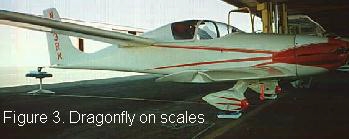
I rolled the Dragonfly into a nice quiet place where I could think and pay attention to what was going on around me and positioned my three scales near the wheels. I outfitted the main gear scales with a block of wood to help distribute the weight and zeroed each scale. I lifted each side of the canard up and slid the main gear scales in place. I elevated the rear tailwheel to a height that would approximate straight and level flight (there's a bubble level position just behind the seatback bulkhead to help me out) and fit the third scale under the tailwheel.
 My usable fuel load at the weigh-in
looked like this: 1-1/4 gallons in the header tank, and 6-3/4 gallons in the
main tank. I dropped a plumb bob all along the aircraft and chalked the
locations on the tarmac to determine the moment arm lengths that I would need
later in the calculations. Every distance was in reference to the Datum Line
which is located 24" ahead of the firewall position. This is how the plans
supplier has specified the design CG Limits, so I can compare the numbers I get
directly with theirs without having to do any converting. Look at Figure 1 for
some visual aid.
My usable fuel load at the weigh-in
looked like this: 1-1/4 gallons in the header tank, and 6-3/4 gallons in the
main tank. I dropped a plumb bob all along the aircraft and chalked the
locations on the tarmac to determine the moment arm lengths that I would need
later in the calculations. Every distance was in reference to the Datum Line
which is located 24" ahead of the firewall position. This is how the plans
supplier has specified the design CG Limits, so I can compare the numbers I get
directly with theirs without having to do any converting. Look at Figure 1 for
some visual aid.
If you refer to the DFLY.WKS worksheet on you screen, or printed elsewhere in this manual, you'll note the distances recorded on the worksheet (STATION/LOCATION data). You also note that there are a few constants also inserted (Fuel = 6lb/gal, Pilot weight = 200 lbs, Co-Pilot weight = 220 lbs, Baggage = 35 lbs) and a couple comment fields for information which are not used in calculations (Max Gross Weight = 1175 lbs, Manufacturer CG Limits = 58.7-63.5 inches), they're just there for me to refer to when I'm analyzing the data.
You understand that your distances may be different than mine, your pilot, co-pilot and baggage weights will be different and your Manufacturer's Limits of Gross Weight and Center of Gravity may be different. The beauty of this system is that you can change the values to match your aircraft configuration.
If you do make changes to the worksheet be sure to save it (Use the drop-down menu FILE/STORE command) with a new name.
As soon as the weigh-in data was secured (I did the same measurement setup on two successive days and got repeatable results), I transferred the info to the worksheet (as a matter of fact, I did have my laptop with me). The left and right gear leg wheel scale values were plugged into cells C20 and C21. The tailwheel scale value was inserted in cell C22. The number of gallons of fuel in the header tank during weigh-in was plugged into cell B23, the same with the main tank fuel total in cell B24.
The spreadsheet program calculated the moment attributed to each of the wheels and totaled them up. It calculated the moment due to fuel on board and subtracted the fuel moment out to give the Total Empty Weight Moment (37527 lb-in) and stored this value in cell E26 for me to see.
Meanwhile the program also totaled up the weight at each wheel and subtracted out the weight of the fuel on board to give the Empty Weight of the aircraft and stored the result in cell C26 (637 lbs) for me to see. The last calculation that the program did for my Empty Weight section of the worksheet was to divide the Total Moment by the Empty Weight of the aircraft to get the Empty Weight Center of Gravity (58.91 in) and store it in cell D26 for me to see. Mighty nice of it to do that for me, wasn't it?
WHAT IF
Now that the basic stuff is done, everything from here on in falls into the
WHAT IF category.
1. What if I take off with full fuel by myself and
some baggage, would my CG and Gross Weight be within manufacturer's limits?
2. What if I attempt to land by myself with only minimum fuel on board and
the same baggage, would the CG and Gross Weight limits be violated?
3.
What if I try the same full fuel takeoff with baggage and a passenger, would the
limits be exceeded?
4. What if I have to land with minimum fuel, baggage
and a passenger, how would I stack up against the manufacturer's limits?
Let's follow each calculation, since they are right there for you to look at on the DFLY.WKS worksheet. For each of the worksheet sections, the Empty Weight comes from cell C26, the Empty Weight Moment comes from cell E26, the Empty CG position comes from cell D26, the pilot weight comes from cell E11 and its position from cell B12, the passenger weight from cell E12 and its distance from the Datum line is stored in cell B13, and the baggage weight and distance comes from cell E13 and B14. These are the items that basically won't be changing throughout the worksheet. Only the Fuel volumes change from section to section and have to be entered for your situation. The first two sections include a passenger, the remaining two section leave the passenger off the plane.
FULL FUEL OPERATION WITH PILOT/CO-PILOT/BAGGAGE
Note that this calculation starts down at cell A30. For this section you'll need to insert the proper amount of fuel (in gallons) in your header tank in cell B33 and main tank in cell B34.
MINIMUM FUEL OPERATION WITH PILOT/CO-PILOT/BAGGAGE
Note that this calculation starts down at cell A42. For this section you'll need to insert the proper amount of fuel (in gallons) in your header tank in cell B46 and main tank in cell B47.
FULL FUEL OPERATION WITH PILOT ONLY/WITH BAGGAGE
Note that this calculation starts down at cell A58. For this section you'll need to insert the proper amount of fuel (in gallons) in your header tank in cell B62 and main tank in cell B63.
MINIMUM FUEL OPERATION WITH PILOT ONLY/BAGGAGE
Note that this calculation starts down at cell A71. For this section you'll need to insert the proper amount of fuel (in gallons) in your header tank in cell B75 and main tank in cell B76.
ANALYSIS
For each scenario (for each section of the worksheet) you're looking for configurations which will send you and your airplane outside the manufacturer's limits for Gross Weight and for Center of Gravity.
As you can see with the DFLY.WKS, my Dragonfly is at its Gross Weight limit when there are a couple of us rotund dudes in the cockpit and we're full of fuel (1176 lbs in cell C39); CG looks ok, though (63.99 in from cell D39).
With the two of us big guys on board and nearing minimum fuel, our Gross Weight backs off from the limit (1098 lbs in cell C52), but the CG approaches the aft limit (64.36 in from cell D52).
The problems I have are way less significant when there is only one person aboard. With full fuel, my Gross Weight is safely within limits (956 lbs in cell C67), and the CG is also fine (61.23 in from cell D67).
And when I'm alone in my cozy cockpit and nearing minimum fuel load, the Gross Weight is still way safe (878 lbs in cell C80) and my CG is just doing swimmingly (61.44 in from cellD80).
How are your limits?
Happy, Safe Flying.
Don Stewart
If you would like to be placed on my mailing list so you can receive free upgrades of the DFLY.WKS worksheet, drop me an email to siinc@gwi.net. Simply put the words: "W&B Upgrade" on the Subject Line.